After using both macOS and Windows for over a decade, I wanted to dive deep into their core functionalities and everyday features to see exactly what you gain or lose when switching between these two operating systems. Whether you’re a long-time Mac user, a Windows enthusiast, or someone considering a switch, this comparison will break down the essentials — from file management and window snapping to app installation and multitasking capabilities in 2025.
Let’s explore the strengths and quirks of each OS, highlighting where macOS shines and where Windows still dominates. Buckle up for a detailed journey through the little things that make a big difference in your daily workflow.
📁 File Management: Finder vs File Explorer
When it comes to managing your files and documents, Windows and macOS take different approaches that reflect their design philosophies.
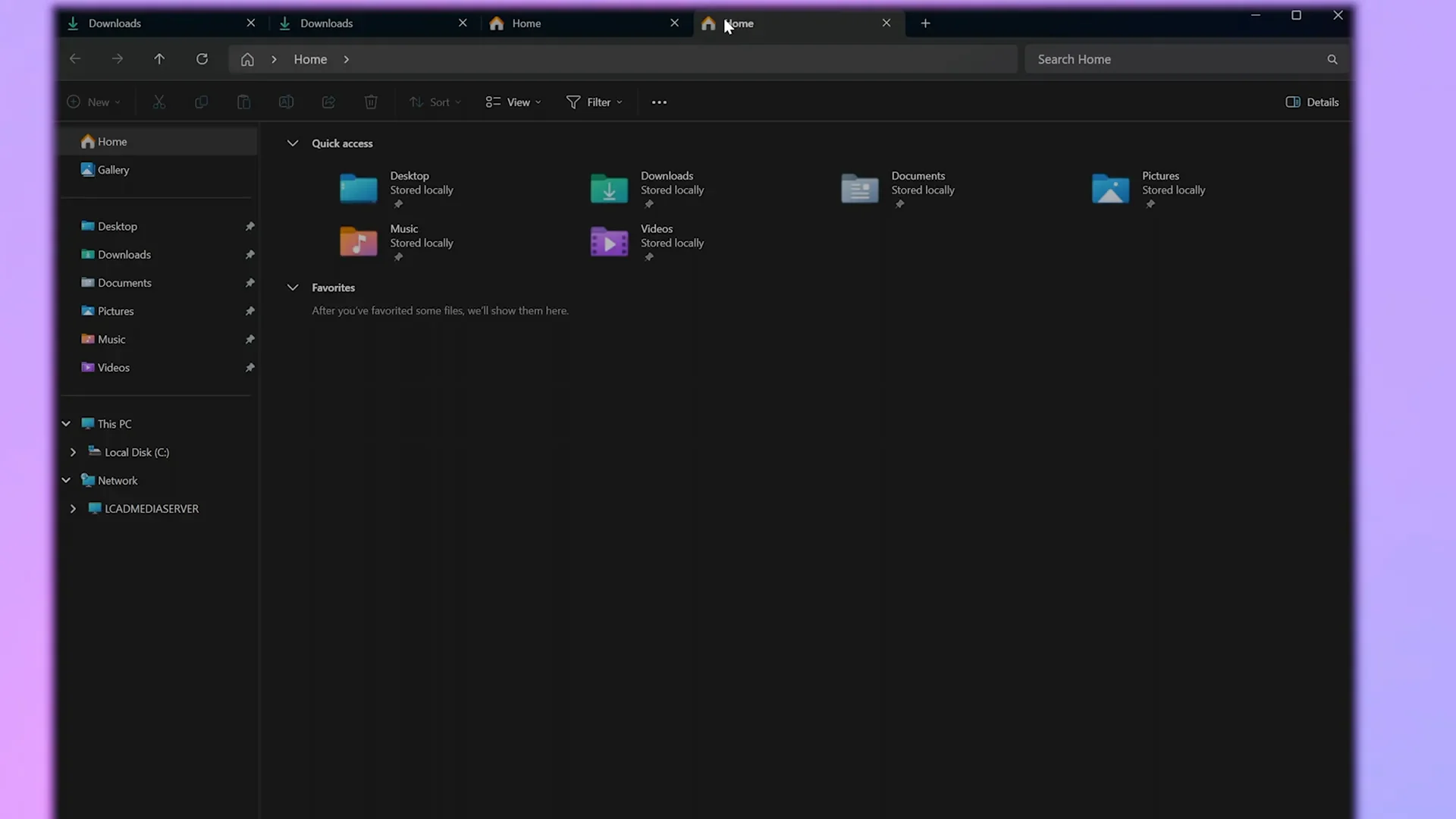
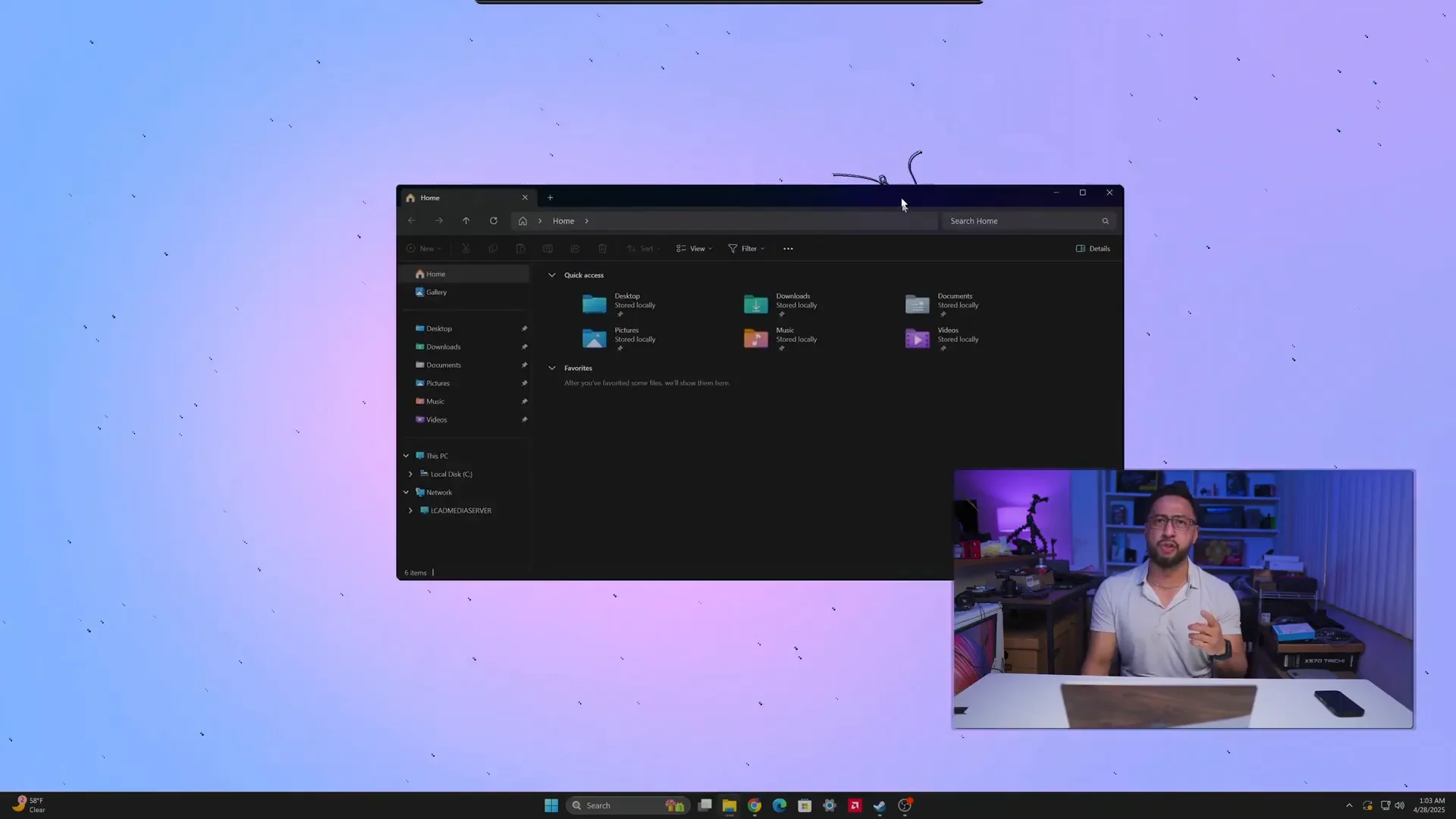
On Windows, the File Explorer offers a feature-rich experience. The sidebar gives quick access to favorite folders and the entire folder structure, like “This PC,” your C drive, Documents, and more. A relatively new addition is the ability to open multiple tabs within File Explorer, making navigation more streamlined. You also get plenty of details at a glance, such as the path bar, file size, date modified, number of items in a folder, and storage info — all designed to give you comprehensive control over your files.
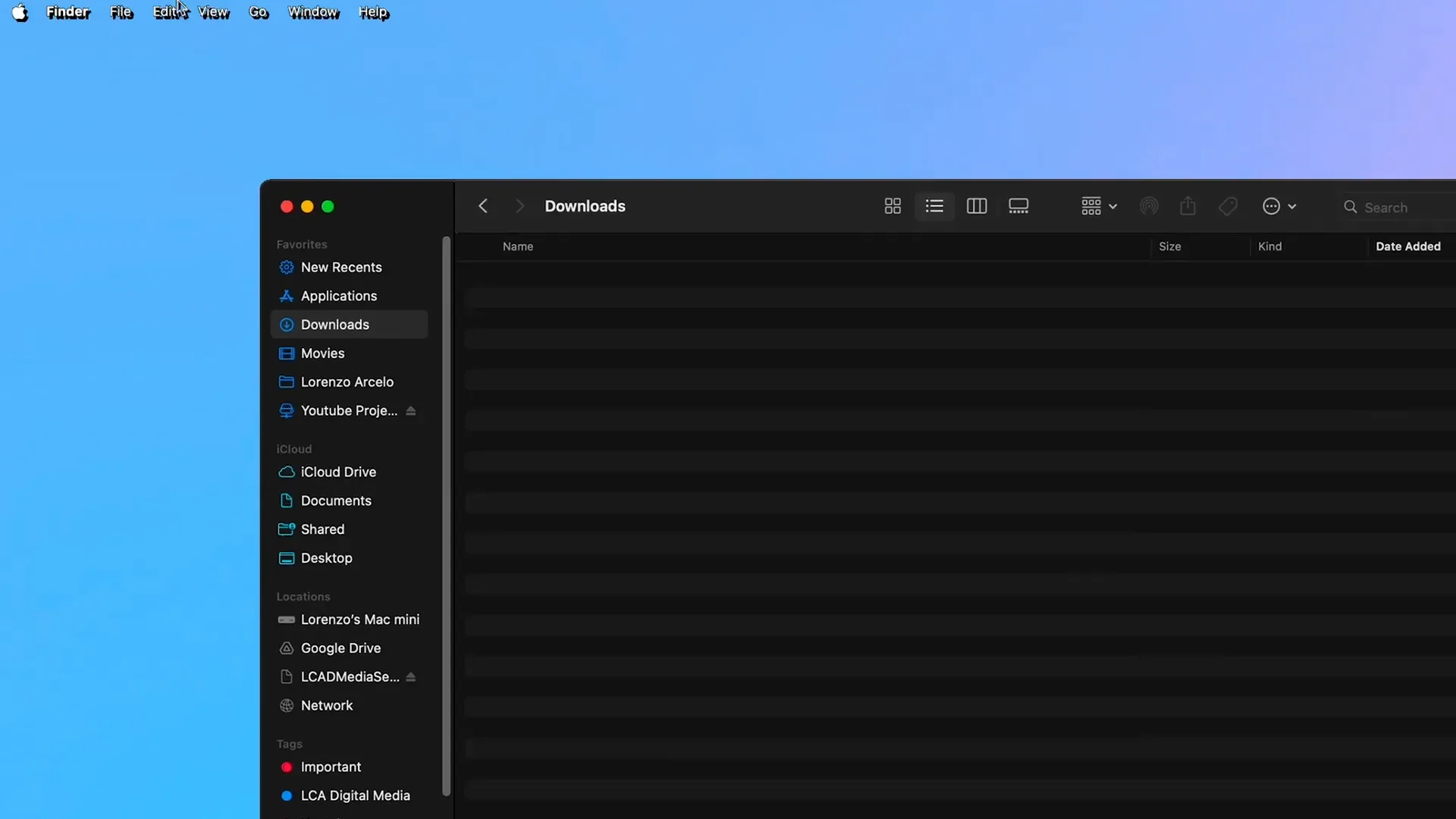
On the Mac side, Finder is the go-to file manager. Apple has opted for a cleaner, more minimalistic default interface. The sidebar shows your favorite folders, which you can pin for quick access. However, some additional details like the path bar, status bar, and tab bar need to be enabled manually in the view menu, though tabs are on by default in recent macOS versions.
One notable difference is during file transfers. Windows File Explorer shows real-time file transfer speeds, which is handy for gauging how long large copies will take. Finder, on the other hand, only displays the estimated time remaining, which can feel less informative. While this isn’t a dealbreaker, it’s a small convenience Windows users will appreciate.
🖱️ Right-Click Menus and Quick Actions
The right-click context menus in both operating systems offer useful options, but macOS brings some unique utilities to the table.
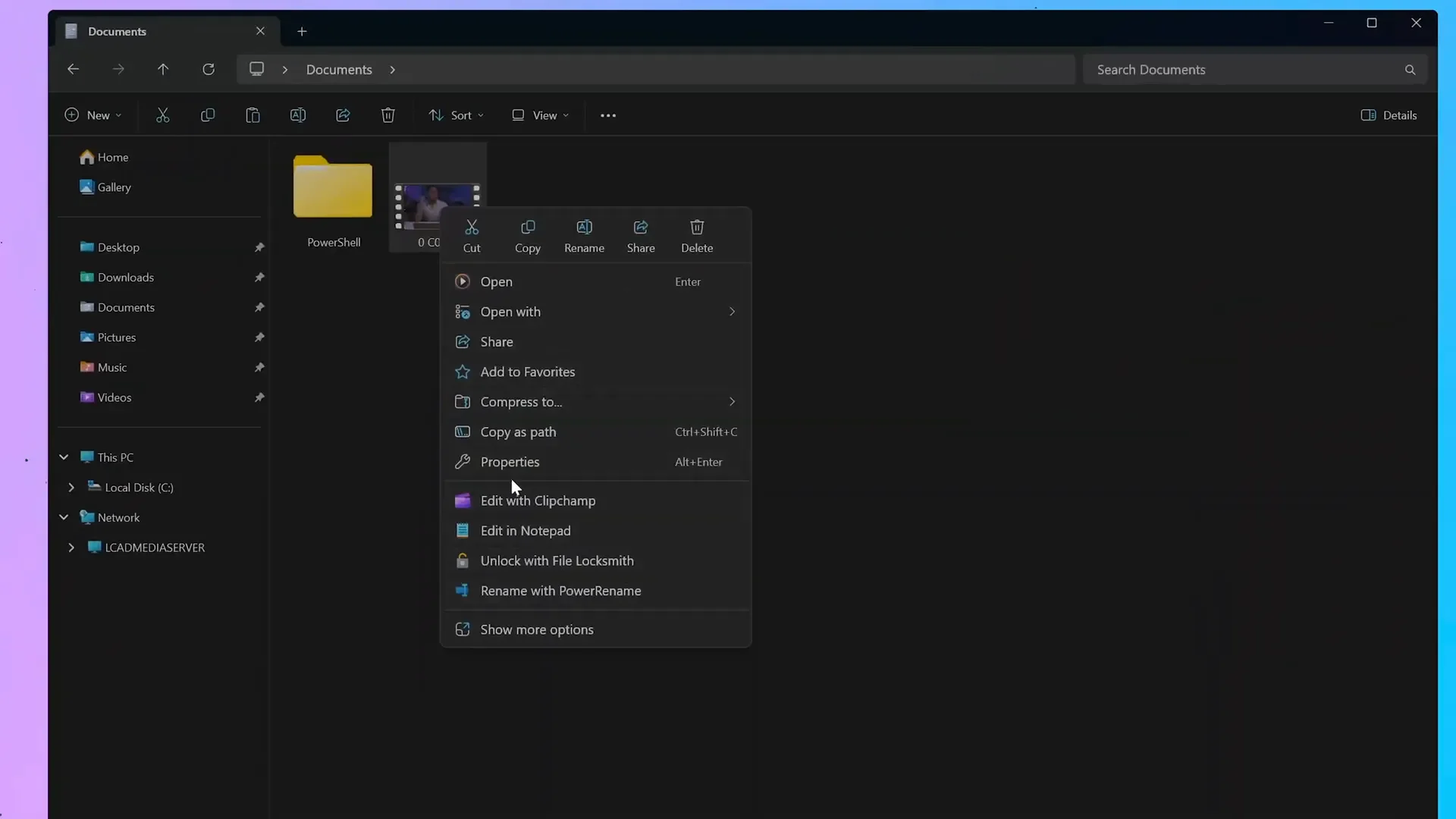
Windows provides common options like copying, pasting, compressing files to ZIP, copying file paths, and even setting an image as your desktop background.
macOS Finder’s right-click menu includes Quick Actions that allow you to create PDFs, convert images to different file types, and even remove backgrounds from images without needing third-party apps. This is a neat feature that enhances productivity, especially for those in creative fields.
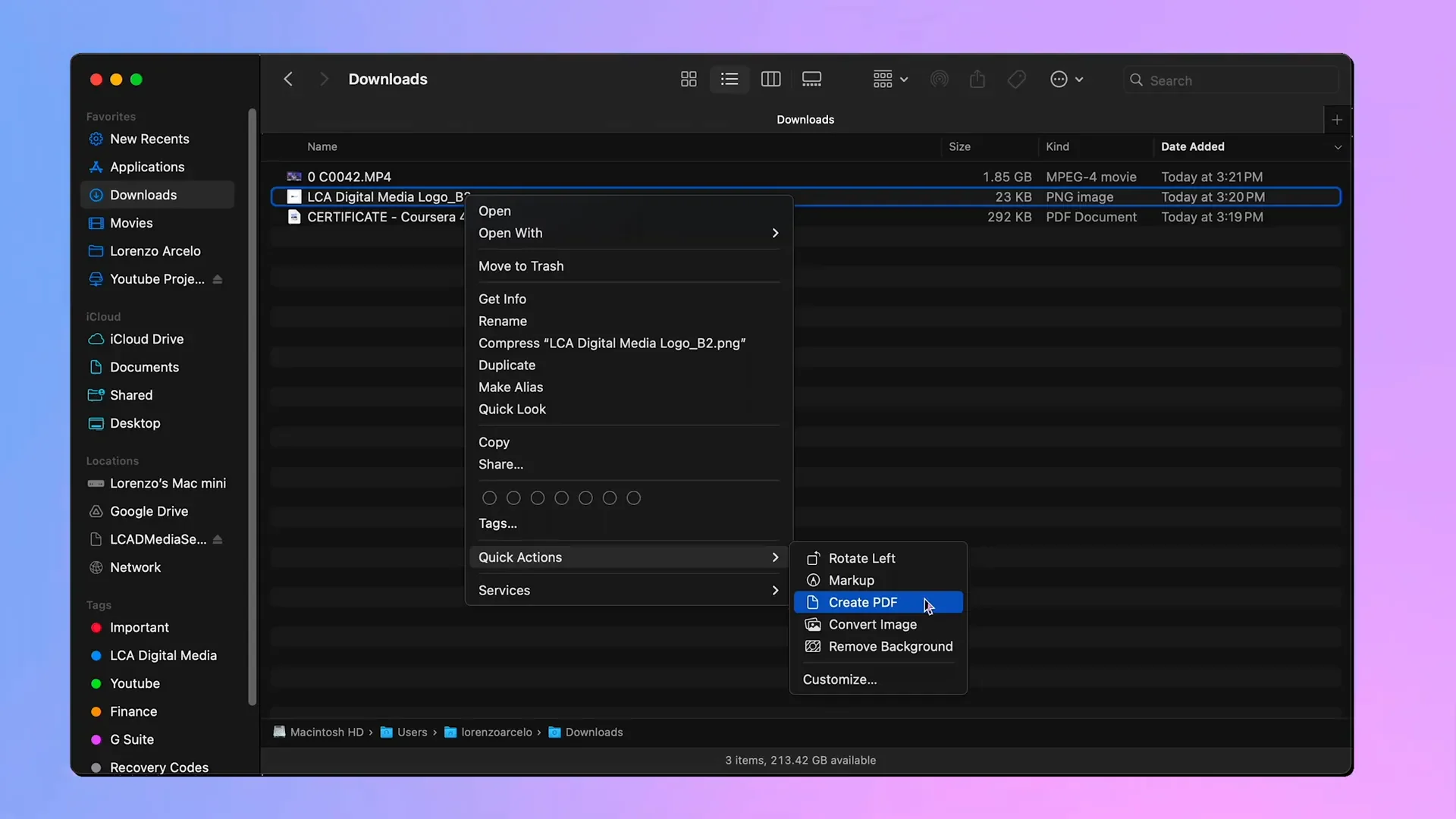
Another standout feature exclusive to macOS is Quick Look. By pressing the space bar on any file, you get an instant preview without opening the app. This preview isn’t just static — you can copy text, trim videos, and even interact with 3D files right inside Quick Look. Windows still lacks this functionality, which is surprising given how useful it is for rapid file browsing.

🔍 Smart Searching: Spotlight vs Windows Search
Both macOS and Windows have powerful search utilities designed to boost productivity, but the difference in execution is significant.
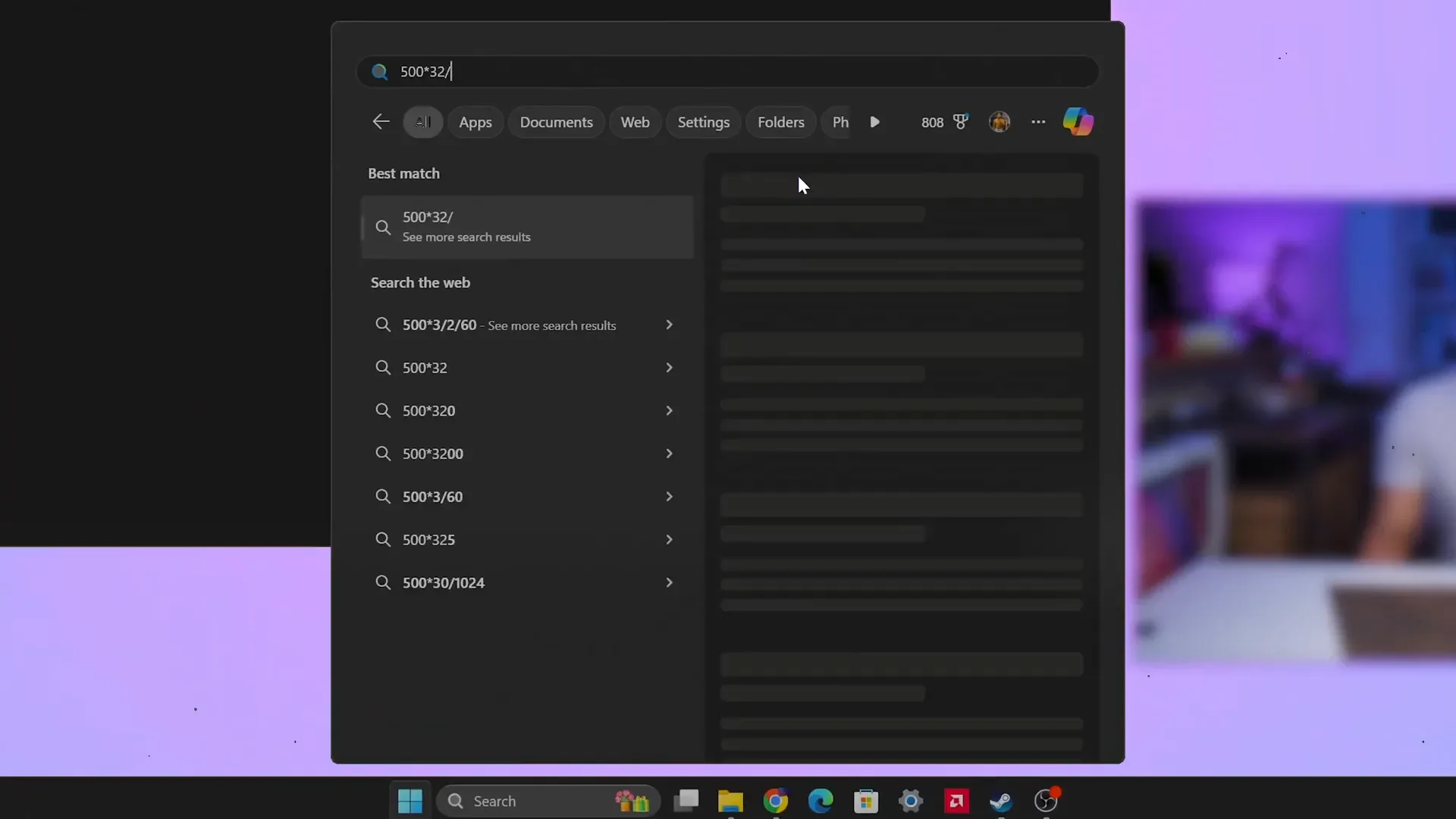
Windows Search can find documents, perform calculations, open apps, convert currency, and show world times. However, it relies heavily on web results, which can slow down the process and requires an internet connection for full functionality.
Spotlight Search on macOS is much faster and works offline. It’s tightly integrated with the OS and apps, allowing you to do more than just find files. You can describe an image to find matching photos in your library, locate apps by name, and even search for contacts to message, call, or email directly from Spotlight — features Windows can’t match yet.
❌ Closing vs Quitting Apps: Different Philosophies
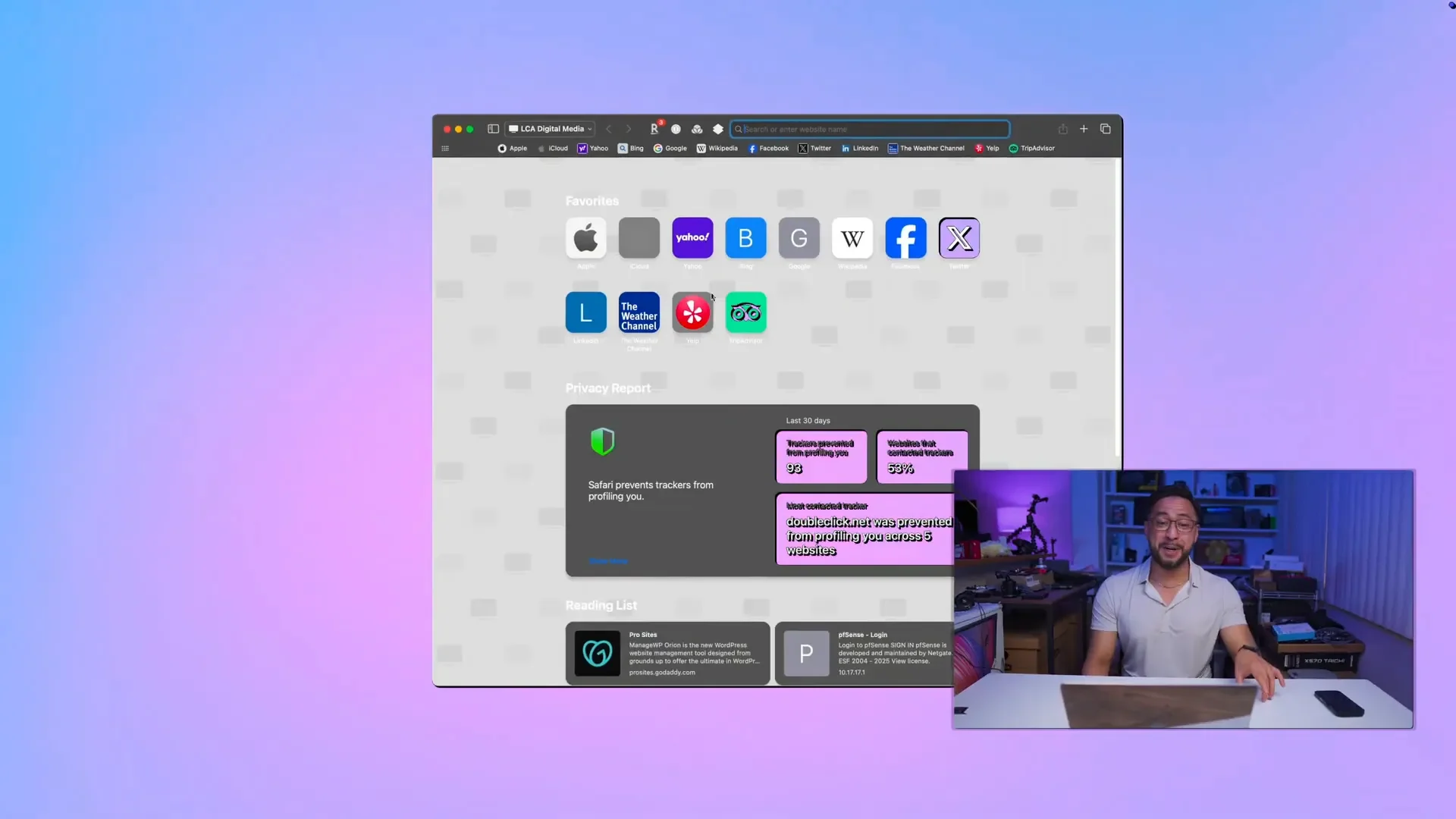
When you close a window on Windows, the app typically quits entirely. On macOS, closing the last window of an app doesn’t necessarily quit the application itself. You can still open a new document from the menu bar without relaunching the app.
To quit an app on Mac, you need to either right-click the app icon in the dock and select Quit, use the menu bar, or press Command + Q. This behavior can be confusing for new Mac users but has its logic — especially for apps that support multiple windows.
However, some apps that only have a single window, like System Settings, will quit completely when you close the window.

🖥️ Fullscreen and Window Management
The maximize button on Windows is straightforward — click it, and the window fills the entire screen.
On macOS, the green button triggers full-screen mode, which hides the menu bar and dock, similar to watching a video in full screen. This can be inconvenient if you want to keep those UI elements visible.
You can double-click the toolbar in Safari to maximize the window only up to the content size, avoiding empty spaces — which might be a hit or miss depending on your preference.
Holding the Option (Alt) key while double-clicking the green button triggers a Windows-like full screen that fills the entire display without hiding UI elements.
Third-party apps like Chrome behave more like Windows in this aspect, filling the screen completely when double-clicking the toolbar.
🧩 Window Snapping: Windows Leads, Mac Follows
Window snapping is a productivity staple on Windows, available natively since Windows 7. You can easily snap windows to the left or right halves of the screen, or even into corners, facilitating multitasking.
macOS only introduced window snapping very recently, and it’s somewhat clunky. You must hold the Option key, hover over the green button, and then select to snap left or right. This workflow is less intuitive and slower compared to Windows.
Because of this, I use a third-party app called Rectangle Pro on Mac, which mimics the native Windows snapping experience, making multitasking far more efficient.
⌨️ Keyboard Shortcuts: Alt-Tab and Mission Control
Switching between open windows and apps is a daily task, and both operating systems have shortcuts for this.
Windows users rely on Alt + Tab to switch between open windows and apps seamlessly.
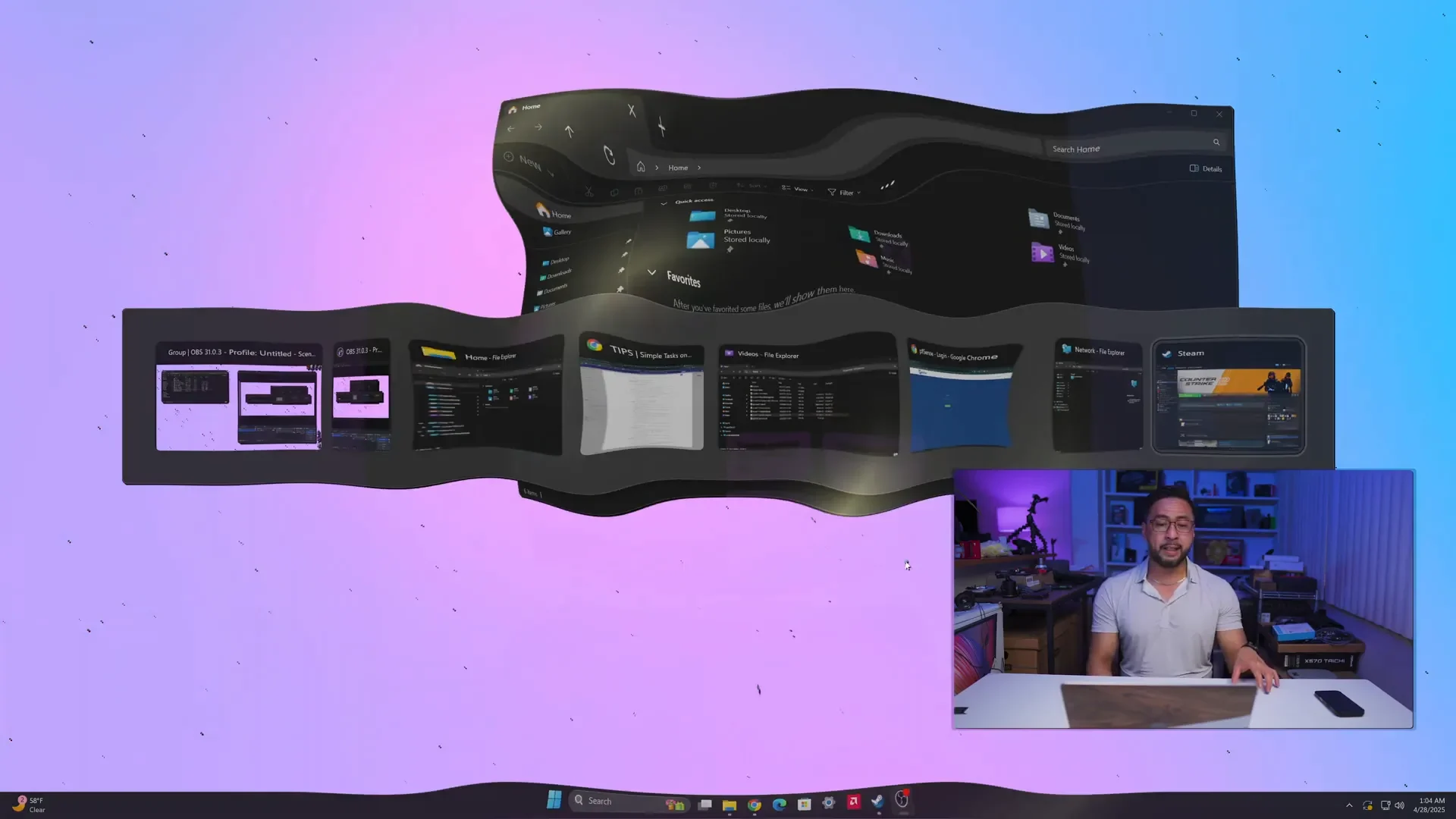
On macOS, Command + Tab switches between apps, but to switch between multiple windows within the same app, you press Command + ` (the tilde key next to number 1). Additionally, Mission Control (activated by F3 or Control + Up Arrow) gives you an overview of all open windows, desktops, and full-screen apps.
Windows has a similar Task View feature, but it’s generally considered less polished and less useful than Mission Control.
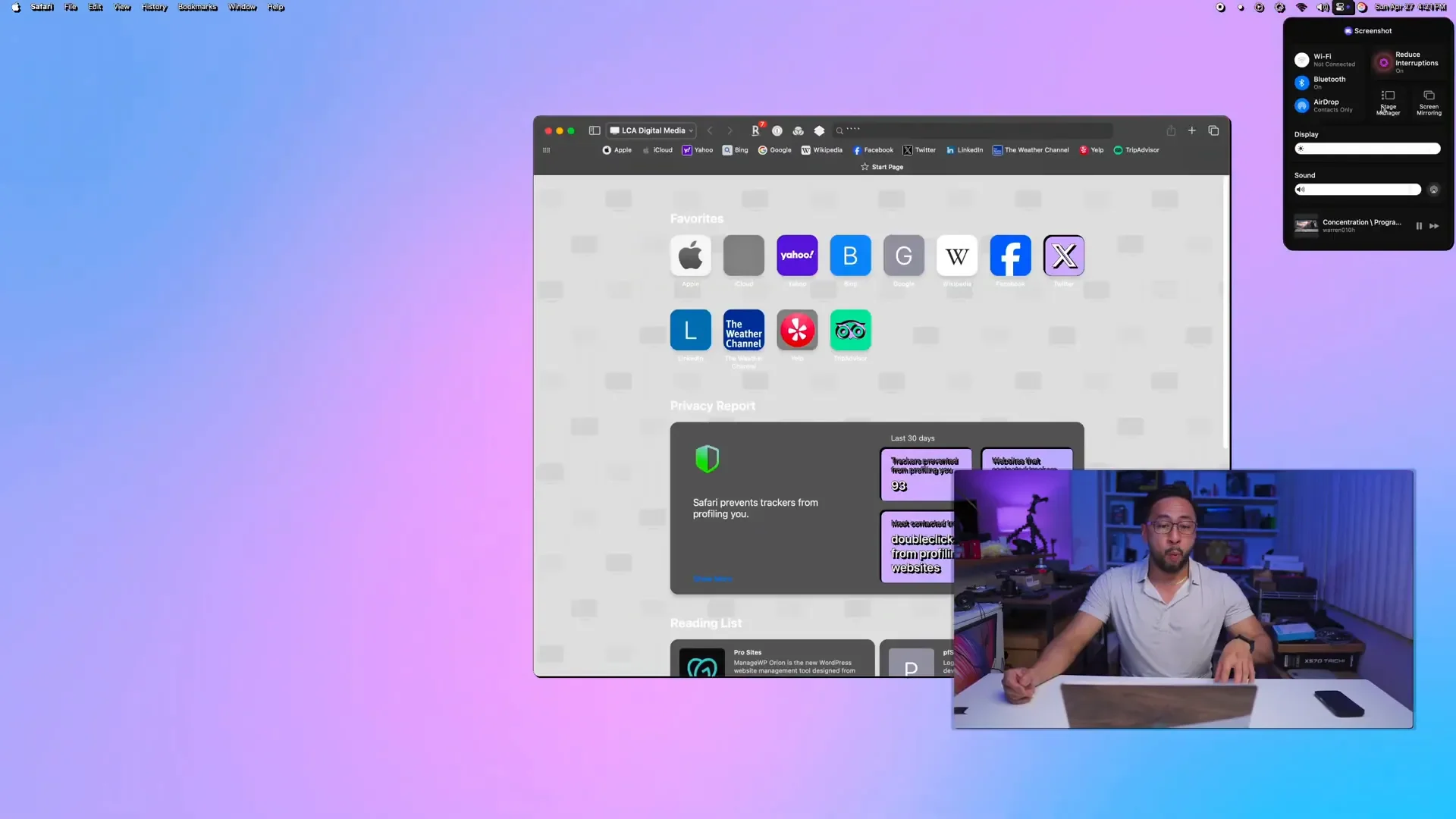
🖥️ Multitasking on macOS: Stage Manager and More
macOS offers several multitasking tools, including Stage Manager, which lines up window previews on the left while focusing the main window in the center. This is particularly useful on smaller screens like MacBooks but less so when you have multiple large monitors.
One downside of macOS is app compatibility. Many applications are primarily developed for Windows, and either don’t have Mac versions or don’t work as well on macOS. Windows still dominates with about 70% of the market share, especially among older generations.
However, this compatibility gap is often overstated. Both systems handle Microsoft Office apps like Word, Excel, and PowerPoint well. macOS also comes with native apps like Pages, Numbers, and Keynote for free, which offer solid alternatives.
For photo editing, macOS excels thanks to optimized hardware, consistent color-accurate displays, and free professional-grade editing apps. Meanwhile, Windows is still the go-to for engineers, gamers, and those who need broad software compatibility.
Interestingly, many programmers prefer macOS because it’s Unix-based and supports nearly all Linux software, making it a great environment for development.
🛒 App Stores and App Management
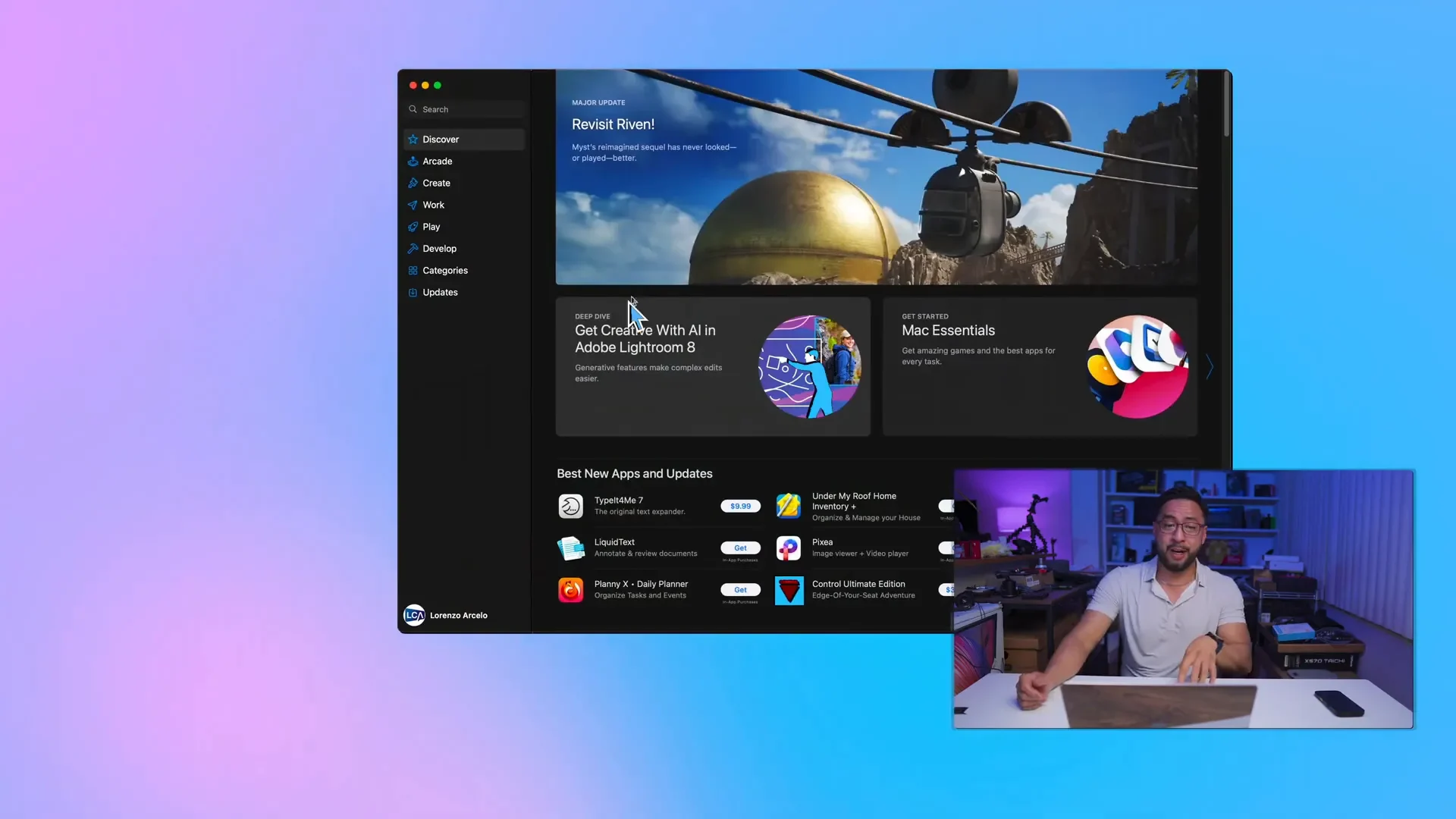
Both Windows and macOS have app stores — Microsoft Store and Apple’s App Store, respectively. The Mac App Store is known for being easy, safe, and centralized, managing app updates and subscriptions in one place.
However, many developers dislike Apple’s strict App Store policies. For example, Google Chrome must be downloaded directly from Google’s website on both Mac and Windows, bypassing the app store.
Installing apps on Windows usually involves downloading an EXE file and running an installer. On macOS, most apps come in a DMG file, which is typically a self-contained bundle. You just drag the app to your Applications folder or even keep it in your user folder, and it runs independently without registry integration.
Uninstalling apps also differs. Windows requires you to go through the Settings or Control Panel to uninstall apps. On macOS, you simply drag the app to the Trash or right-click and select Move to Trash, just like deleting a folder.
📂 Copying and Moving Files: Different Shortcuts
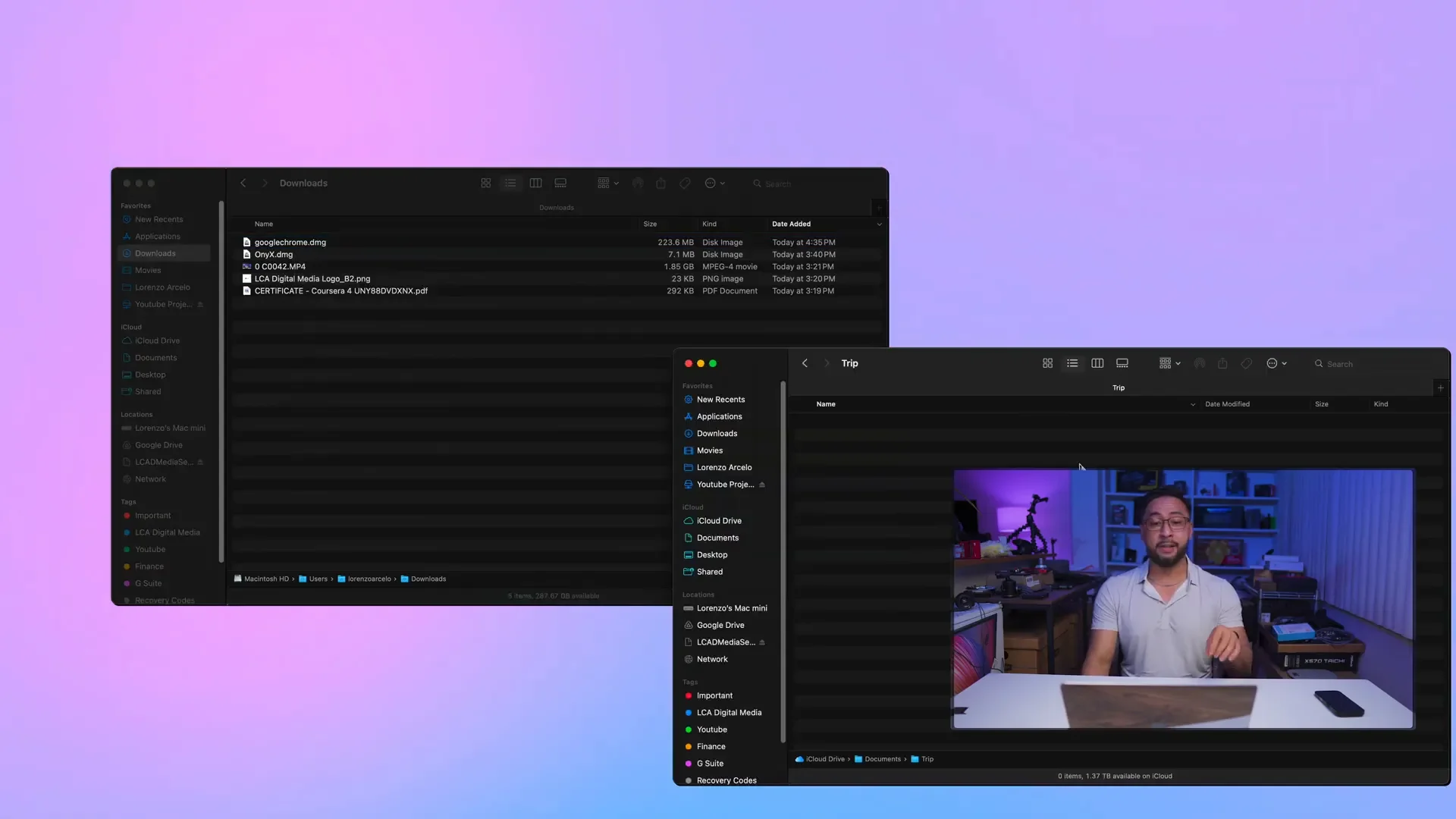
Copying and moving files is fundamental, and the shortcuts vary between the two OSes.
In Windows, dragging a file while holding the Control key copies it, and Ctrl + C / Ctrl + V are the standard copy-paste shortcuts.
macOS uses Command + C and Command + V for copying and pasting, but moving files requires a slightly different approach: copy the file with Command + C, then paste it with Control + Option + V to move (paste and delete the original). You can also drag and drop to move files or hold Command while dragging to copy.
Conclusion: Which OS Wins in Everyday Tasks?
Both macOS and Windows have their strengths and quirks when it comes to handling everyday tasks in 2025. Windows continues to lead in some practical areas like window snapping, app compatibility, and detailed file management. macOS, meanwhile, impresses with smart features like Quick Look, Spotlight Search, Mission Control, and a more streamlined app installation and uninstallation process.
If you prioritize creative work, consistent color accuracy, and Unix-based development environments, macOS is an excellent choice. On the other hand, if you need broad software support, superior window management, and gaming capabilities, Windows remains the dominant player.
Ultimately, the best OS for you depends on your workflow, preferred apps, and hardware setup. Hopefully, this detailed comparison helps you understand what to expect and where each system excels.
Feel free to share your experiences and preferences in the comments — which OS handles your daily workflow better, and what features do you wish the other had?
Made with VideoToBlog using macOS vs Windows 2025 — Which OS actually handles everyday tasks better?